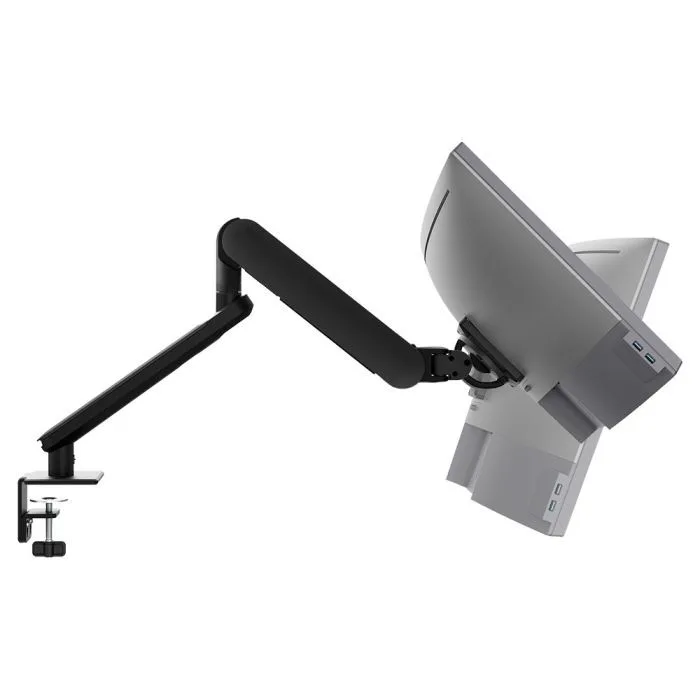
AW-ORA-F-B
Ora with F-clamp 2 to 8kg · up to 38-inchRotation can be set to 180 or 360 degrees, with fingertip adjustment at the head.
SEE AW-ORA-F-B
Test an Atdec arm with your own monitors and your own team, then take what you learn into your next office project.
A vertical monitor, often called a portrait monitor, is an ordinary monitor rotated 90 degrees so it stands taller than it is wide. Any monitor can run this way, as long as it sits on an arm that rotates.
Nothing about the monitor changes. You gain height and lose width, so the choice comes down to what each person spends their day looking at. How the VESA standard works.
| Landscape | Portrait | |
|---|---|---|
| Shape | Wide and short | Tall and narrow |
| Suits | Wide spreadsheets, video calls, two windows side by side | Documents, code, chat and ticket queues, long web pages |
| Scrolling | More, for anything long | Less: a full A4 page fits at readable size |
Portrait suits people who read down a page more than across it. Four roles see the biggest gain.
More lines of code on screen at once, so less scrolling through long files.
Best layoutLandscape + portraitContracts, reports and statements show as a full page at a readable size, without zooming out.
Best layoutTwo portraitsLarge spreadsheets best on landscape with messaging feeds and orders visible without scrolling.
Best layoutLandscape + portraitTicket queues, chat and knowledge base articles stay in view without shrinking the text.
Best layoutLaptop + portraitThe monitor already on the desk will often do the job. Four checks tell you whether it will work in portrait.
Not sure about weight or depth? Read how to check monitor arm compatibility.
Most portrait setups follow one of three layouts. Pick by role, not by desk.
For hybrid staff and hot desks. The laptop handles email and calls while the portrait screen holds the document or code.
The most common portrait setup for developers and analysts. The main screen stays wide, the second turns for code, documents or chat.
Two tall screens make an even workspace for comparing long documents, such as a contract and its previous version.
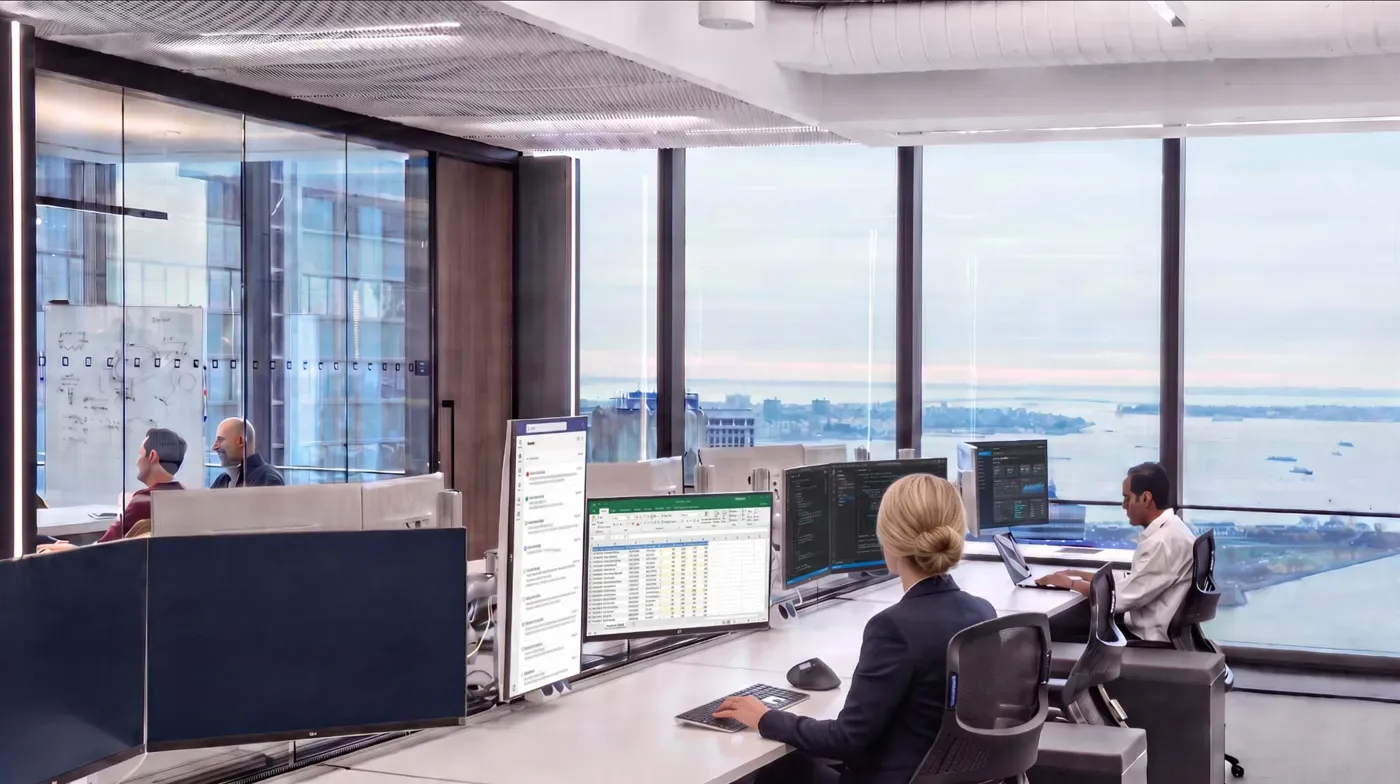
Turning a screen raises its top edge, so lower the arm until the top of the screen sits at or slightly below eye level. More in our 10 ergonomic tips and our guide to dual monitor configurations.
Six arms from the Atdec range that suit portrait and mixed setups, with each one's weight rating.
Rotation can be set to 180 or 360 degrees, with fingertip adjustment at the head.
SEE AW-ORA-F-B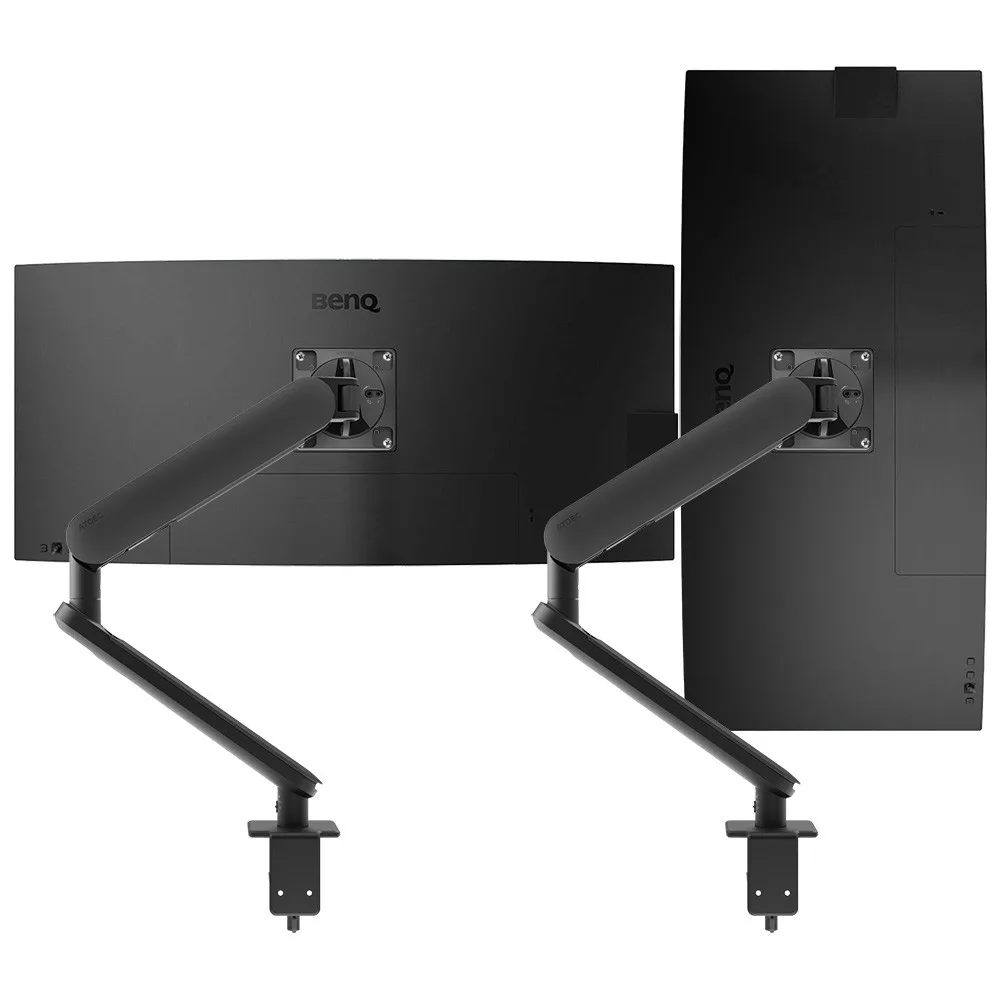
Two independent arms, so one screen can sit in portrait and the other in landscape.
SEE AWS-ORA2-F-B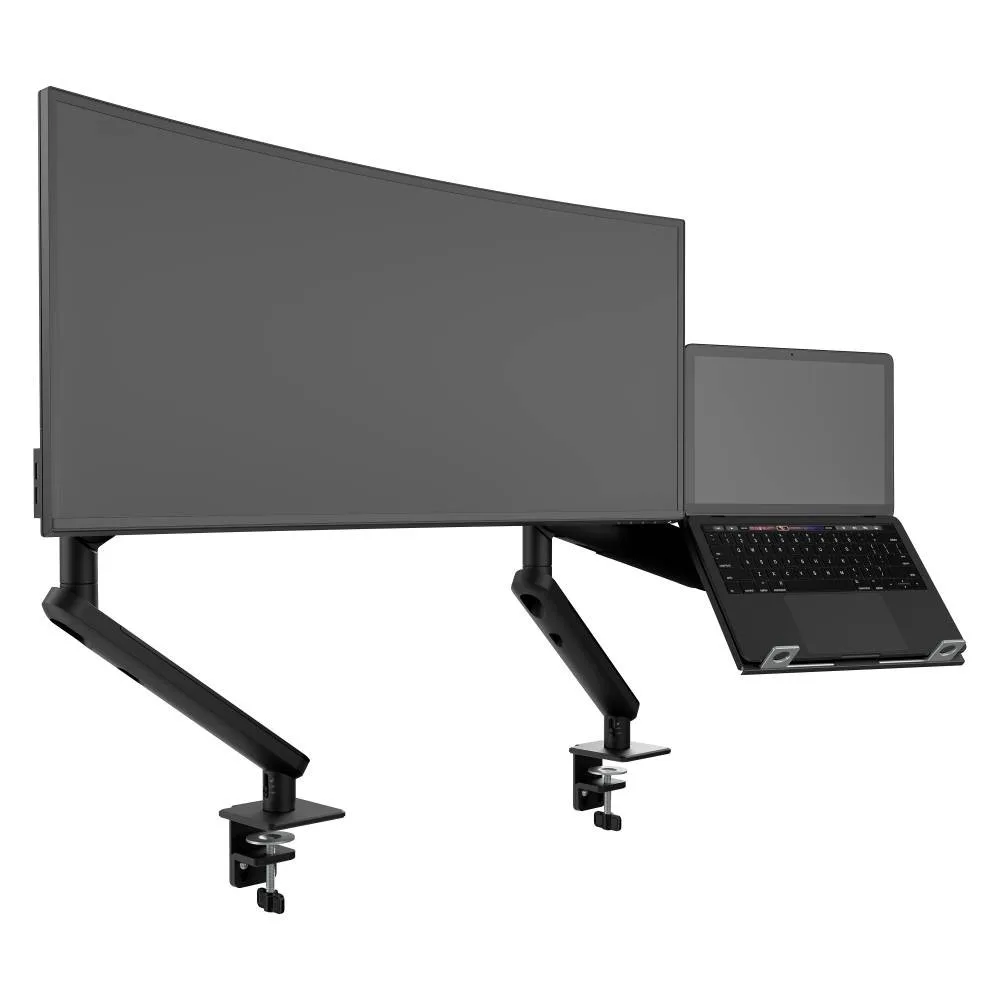
A rotating monitor arm beside a ventilated laptop tray, for hot desks and hybrid staff.
SEE AWS-N-ORA2-F-B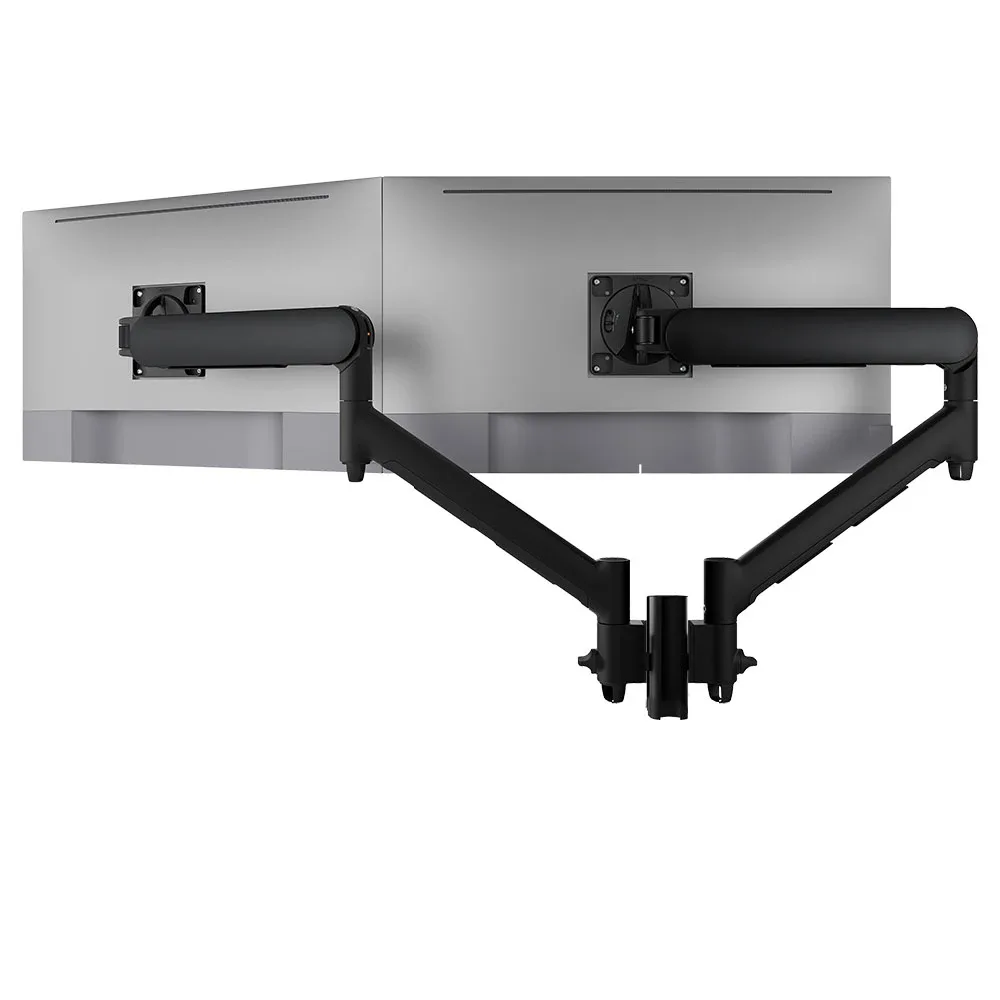
Landscape-to-portrait rotation on both heads, with five desk fixing options including grommet and bolt-through.
SEE AWMS-2-D13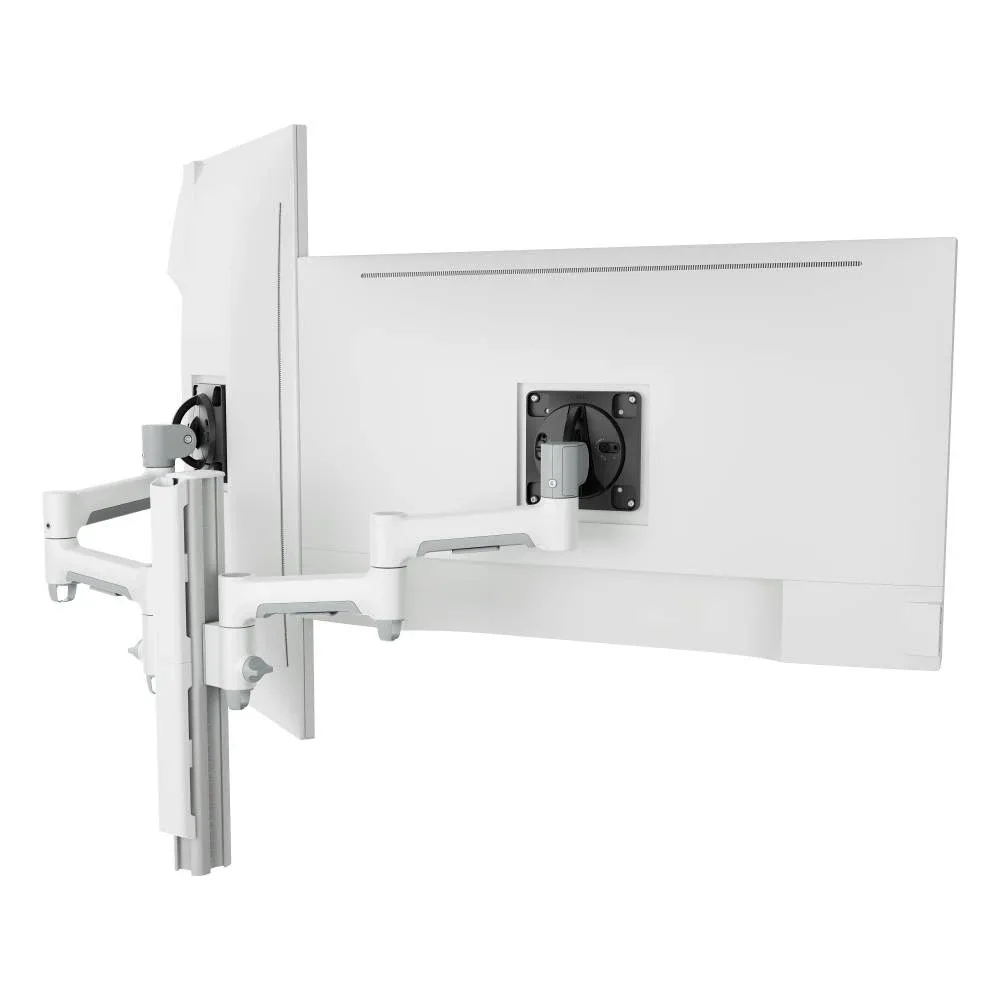
For heavier 27 to 32-inch screens on a fixed post, rotating from landscape to portrait.
SEE AWMS-2-4640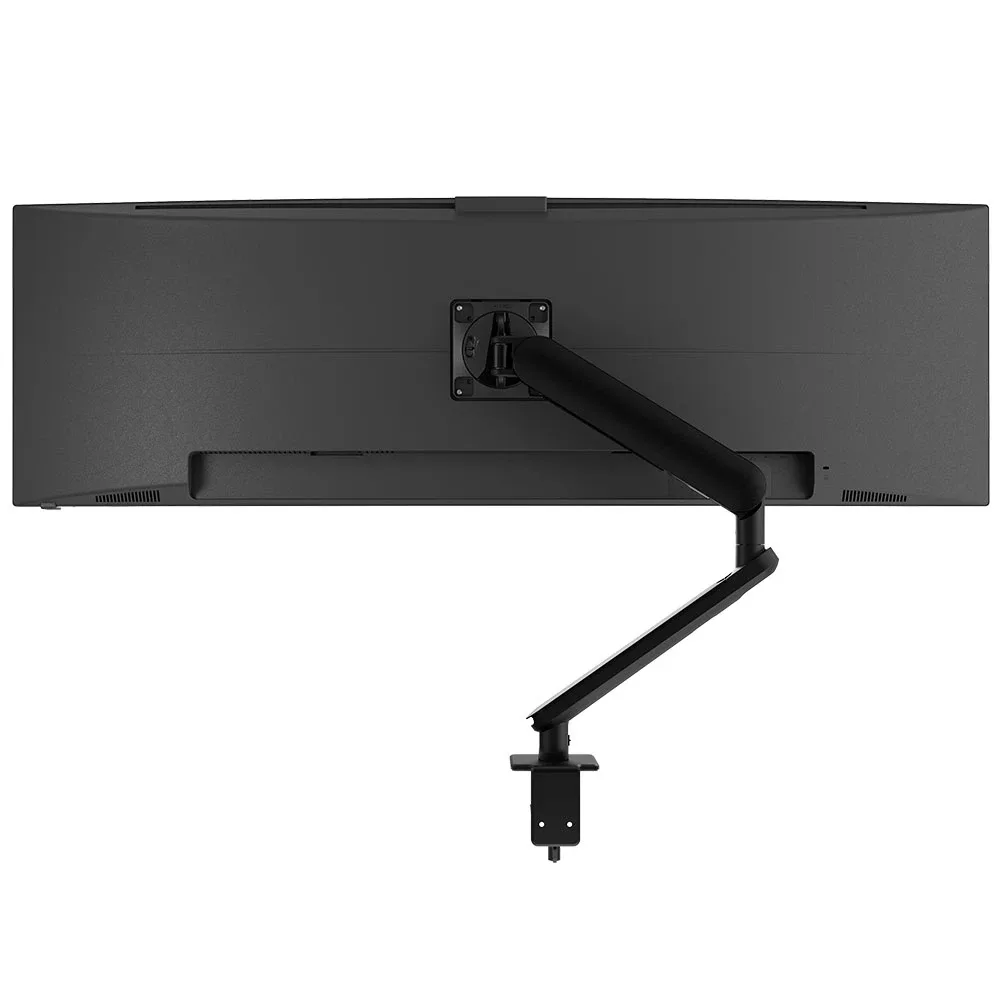
For heavier screens, with a one-flick rotation limiter that IT can set.
SEE AW-ORA10-FStacking two screens one above the other instead? See our vertical dual monitor stands.
Portrait works best when any desk can switch without new hardware, and when the whole floor runs on one system.
Single monitor arm solution for any combination of landscape and portrait monitors, so IT stocks one system for the whole floor.
Rotation can be locked to 180 degrees or left free to turn a full 360, so arms and screens stop where IT sets them.
Generous cable management bays, drop-on VESA head, post guide marks, and visual tension indication.
A 10-year warranty, local stock and engineering support, from an Australian-owned company designing mounts since 1998.
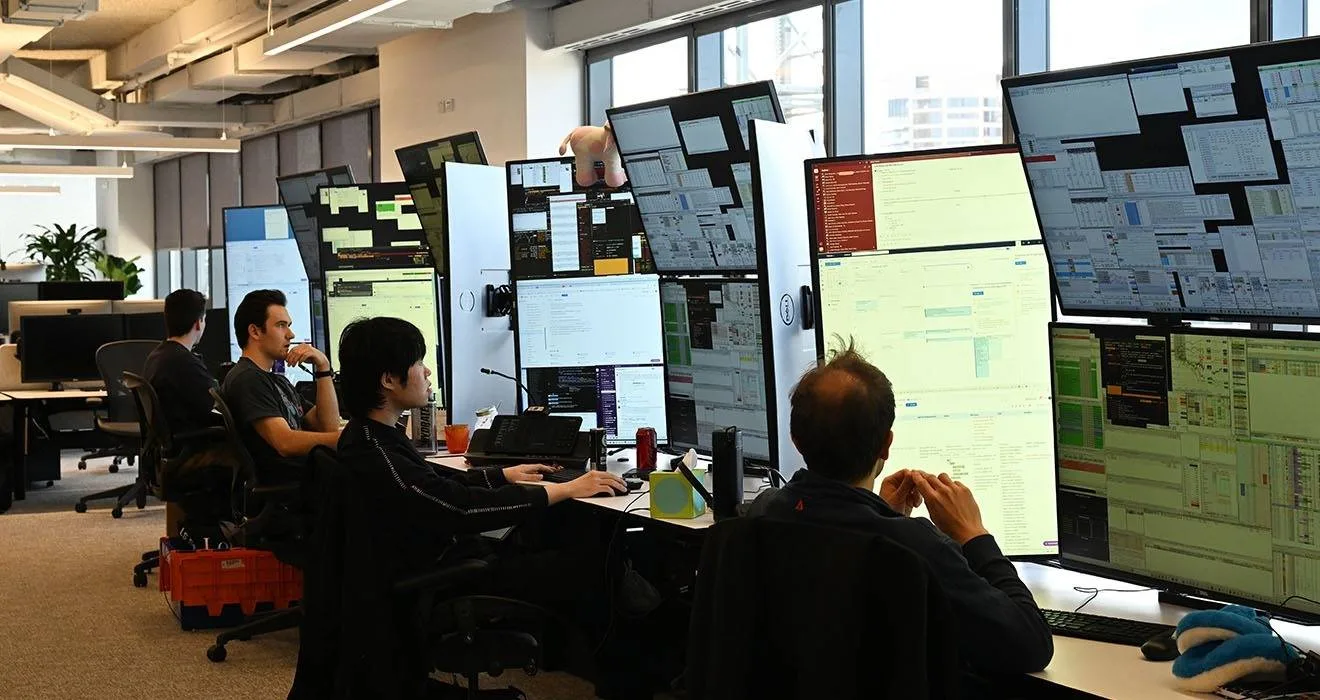
Rows of multi-monitor desks on one of Australia's busiest trading floors, set up on Atdec mounts.
Read the case studyYes. Every monitor can be rotated to portrait orientation if it is on a suitable monitor arm. In practice, flat monitors are more popular in portrait mode than curved ultrawide monitors, as curved monitors are designed that way for immersion – they are best kept in landscape orientation. Our compatibility guide covers weight and depth.
24-inch and 27-inch flat monitors are the most popular for portrait mode on single and dual-monitor desks. Dual swing arms and dual dynamic arm solutions all comfortably accommodate those monitors in landscape and portrait modes. Larger monitors are very tall when rotated and require special consideration to ensure they clear the desk. Monitors such as 32-inch and 43-inch are used in portrait mode for specialist cockpits on trading desks and control consoles.
Yes, which makes developers a good place to start a pilot. A portrait screen shows far more lines of code at once, so developers scroll less and keep more of a file in view. The usual setup is one landscape screen for the running app or browser and one portrait screen for code. Put that pair on an Ora Duo for a developer or two, then ask after a few weeks whether they'd want it on every desk.
The arm turns the monitor physically and the operating system turns the picture to match. In Windows, open Settings, then System, then Display, and set Display orientation to Portrait. On a Mac, open System Settings, then Displays, and set Rotation to 90 degrees. Some monitors rotate the picture automatically once they detect the turn. Set this up before you hand the pilot desk over, so the tester starts with a screen that is ready to use.
Request a free Atdec monitor arm and set it up on a desk in a role that reads long content, such as development, legal, finance or accounts. Give the tester time to settle in, then ask what changed in their day. Our team calls before the arm ships to match it to your screens. Once the pilot is done, we'll give you specifications, warranty details and case studies to take your recommendation through purchasing.
Request a free Atdec monitor arm to test with your monitors and your team. It's yours to keep. We'll call first to match the arm to your screens, so you can judge it on a real desk before you set the site standard.